Unban
To view all the “Jails-Name”
sudo fail2ban-client status
To view the IPs in each “Jail”
sudo fail2ban-client status JAIL-NAME
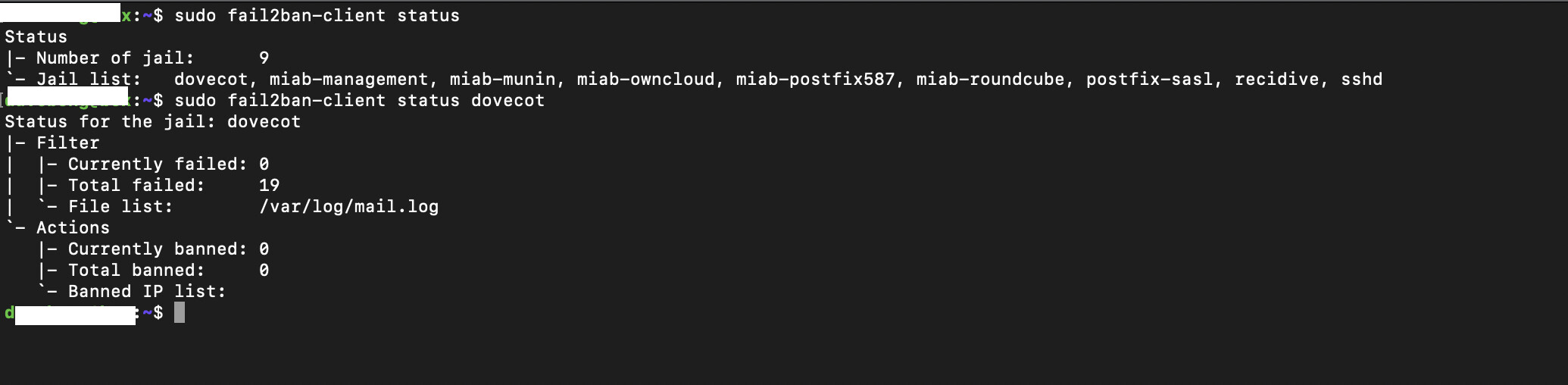
To view all IPS banned (the jailname is on the right of log)
sudo zgrep ‘Ban’ /var/log/fail2ban.log*
To find the jailname of the IP you want to unban (you need this)
sudo zgrep ‘Ban’ /var/log/fail2ban.log* | grep
your-ip
to Unban
sudo fail2ban-client set
JAIL-NAMEunbanipIP-ADDRESS
WhiteList
To whitelist, open this conf
sudo nano /etc/fail2ban/jail.conf
Edit this line (Example, by IP or by IP block)
ignoreip= 192.168.0.1 192.168.5.0/32
Restart Fail2ban for it to take effect.
Troubleshoot Whitelist
If the above file doesn’t work then look like you need to edit /etc/fail2ban/jail.d/mailinabox.conf instead, which gets overwritten.
To rewrite your config after each mailinabox upgrade, you may want create a custom script with the following (please test before using in production) in your home directory, and chmod +x
#!/bin/bash
mailinabox/tools/editconf.py /etc/fail2ban/jail.d/mailinabox.conf \
            ignoreip = "127.0.0.1/8 <your-box-ip> <other whitelist ip>"
127.0.0.1/8 <your-box-ip> are default values in mailinabox.conf and should stay the same.